All You Need to Know About the PS2
The PlayStation 2 remains a rewarding console to explore, whether you are returning to a childhood favourite or discovering its games for the first time. Its library spans sprawling adventures, racing games, fighting games, Japanese RPGs, survival horror and some wonderfully unusual experiments. It can also play much of the original PlayStation’s disc library, giving one machine access to two important generations of gaming.
Getting the most from a PS2 today takes a little preparation. Different hardware revisions have different connections and upgrade options. Modern televisions can struggle with the console’s original video signals. Memory cards, controllers and disc drives are now old enough that their condition matters as much as their specifications.
This guide explains the PS2’s history, the differences between models, which games to try, what to check when buying, and how to build a dependable setup. It also covers PS1 compatibility, playing PS2 games on later PlayStation consoles, online communities, PC emulation and homebrew. If you want the simplest starting point, choose a tested console, a working DualShock 2, a dependable memory card and a display connection suited to your TV. Get those basics working before spending money on specialist upgrades.
1. What the PS2 Is and Why It Still Matters
The PS2 is Sony’s second main home PlayStation console, following the original PlayStation. It belongs to the generation that also included Sega’s Dreamcast, Nintendo’s GameCube and Microsoft’s original Xbox. Its appeal came from a combination of software, compatibility and everyday usefulness: it was a new games machine, a way to keep playing many existing PlayStation games and a DVD player.
For someone moving from PS1, the jump could be striking. Characters and environments became more detailed, games could build larger worlds, and voice acting and cinematic presentation became increasingly prominent. The change was visible across very different genres, from the city streets of Grand Theft Auto to the landscapes of Final Fantasy X and the car collections of Gran Turismo.
Sony’s PS2 history page highlights both the console’s entertainment features and the games that shaped its identity. That breadth remains its main attraction. You do not need to appreciate every famous release to find a worthwhile collection: a racing fan, an RPG player and someone looking for local multiplayer can each build a very different PS2 shelf.
There are limitations to accept. The original hardware does not offer HDMI, system-wide cloud saves or a modern digital storefront. Controls, checkpoints and camera behaviour can feel dated. Those differences are part of choosing an older platform, and they vary enormously between games. Start with a title you actually want to play rather than assuming that a famous name will automatically suit your tastes.
2. When the PS2 Launched and How Its Lifespan Developed
The PS2’s first release was in Japan on 4 March 2000. North America followed on 26 October 2000, and the UK and wider European launch took place on 24 November 2000. These are regional dates for the same platform, which is why a search for its release date can produce several correct answers.
| Milestone | Date | What it means |
|---|---|---|
| First launch in Japan | 4 March 2000 | The beginning of the PS2’s commercial life |
| North American launch | 26 October 2000 | The US and Canadian release |
| UK and European launch | 24 November 2000 | The relevant launch date for a UK history guide |
| First Slim release in Europe and North America | 1 November 2004 | The major redesign arrived several years later |
| First Slim release in Japan | 3 November 2004 | The Japanese launch of the redesign |
Sony’s original North American launch announcement gives a US suggested retail price of $299. The UK launch price was £299, as recorded in contemporary reporting.
The later Slim was a substantial physical redesign. Sony’s 2004 Slim announcement describes a much smaller machine with built-in networking. It continued the same software platform rather than starting a separate generation of games.
Manufacturing ended in 2013, as reported at the time. The platform’s appeal and useful life extended well beyond its original launch period.
For collecting, distinguish the age of the platform from the age of an individual console. A later Slim is not 2000 launch hardware, and a game’s copyright date does not necessarily identify the printing date of the copy you own. Regional releases and budget reissues also complicate attempts to identify a single worldwide “last game”. Be precise about the region and release you are describing.
3. How Many PS2 Consoles and Games There Are
Sony’s current business data and sales page lists more than 160 million PS2 hardware units. The table describes hardware figures as sell-in, so they should not be casually relabelled as an exact count of purchases by individual consumers. The familiar 155 million figure found in older articles is an earlier reported milestone.
The number of games needs a different qualification. Guinness World Records identifies at least 4,380 unique physically released PS2 titles. It also explains that Sony’s much larger 10,828 figure counted regional releases separately. Both figures can appear in discussions of the library, but they describe different counting methods.
If a game appeared in Japan, North America and Europe, a regional-release database can count those editions separately. A unique-title list usually aims to count the underlying game once. Reprints, Platinum or Greatest Hits editions, demos and promotional discs introduce further decisions for collectors.
The practical lesson is to define a collection before chasing a full set. A UK PAL set, a worldwide set of unique games and a shelf of original black-label editions are different projects. For most players, a focused selection of games they enjoy is more useful than an enormous checklist with rules that keep changing.
4. The Hardware and Connections Explained
The PS2’s central processor is the Emotion Engine, working with the Graphics Synthesizer. Sony’s original design announcement, preserved in an archive, specifies 32MB of main memory. Its later chip integration announcement documents the approximately 294.9MHz clock and 4MB of embedded graphics memory.
| Feature | PS2 specification or behaviour |
|---|---|
| Main processor | Emotion Engine, approximately 294.9MHz |
| Main memory | 32MB |
| Graphics processor | Graphics Synthesizer |
| Embedded graphics memory | 4MB |
| Game media | PS2-format CDs and DVDs |
| Standard controller connections | Two PlayStation controller ports |
| Standard memory-card connections | Two slots |
| Main picture connection | Analogue AV Multi Out |
| Digital audio | Optical output |
| Native HDMI | None |
| Networking | Separate adaptor on compatible full-size models; built-in Ethernet on Slims |
These numbers explain the hardware’s period, but they are not a shortcut to judging a game. Developers used its resources in different ways. A smaller, carefully designed environment can look more convincing than a larger scene with rougher performance. The phrase “128-bit console” belongs to the era’s hardware descriptions; it does not mean the PS2 is directly comparable with a modern computer according to one bit-width number.
Understanding the Sockets
AV Multi Out carries the console’s analogue picture and, with the appropriate lead, stereo audio. Composite, S-video where supported, RGB and component connections have different requirements. The optical socket is for digital audio, not video. An Ethernet connector is for networking, not a monitor.
USB support depends on the software using it. A generic modern USB controller, camera or microphone is not guaranteed to work simply because its plug fits. Likewise, USB storage is not a standard replacement for a game disc or memory card through the ordinary PS2 Browser.
Some early full-size machines have an i.LINK connector used by supported software. Later revisions removed it: Sony’s SCPH-50000 announcement explicitly lists its absence, alongside the expansion bay and optical audio output. Check the actual machine when an unusual connection matters to your plans.
5. PS2 Fat and Slim Models
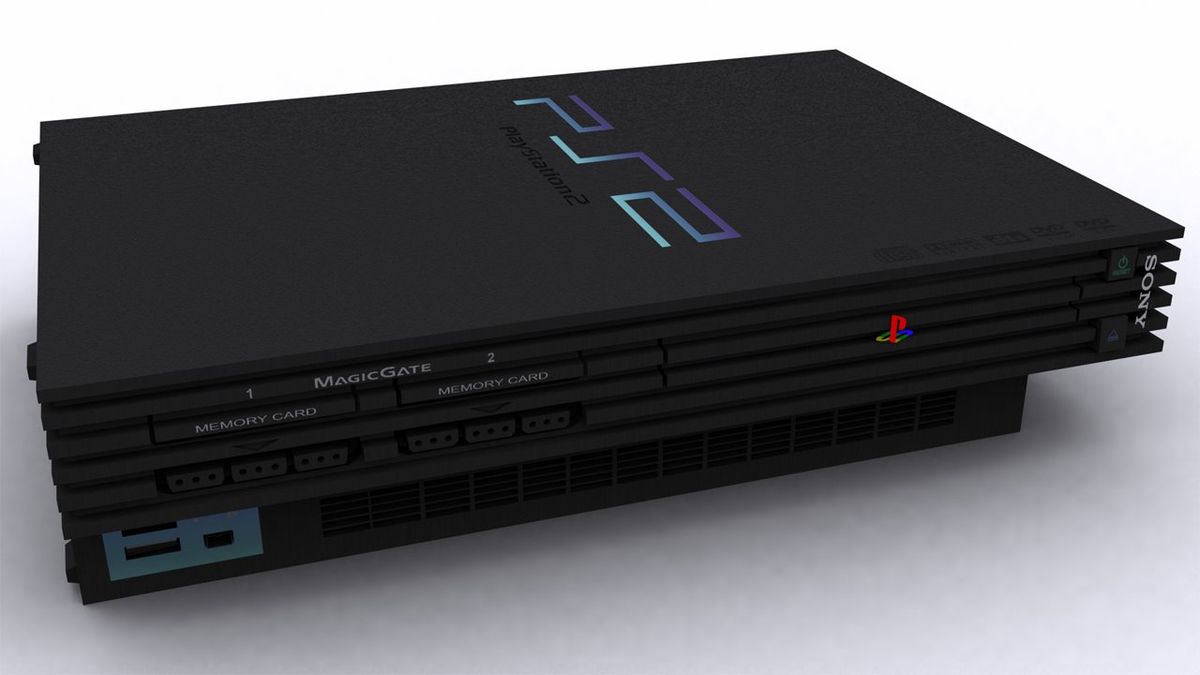
“Fat” is the common name for the larger PS2 design, while “Slim” describes the compact redesign introduced in 2004. Each name covers several revisions. The SCPH model number on the console’s label is more useful than a listing that says only “original PS2” or “PS2 Slim”.
| Model family | Main characteristics | What to check |
|---|---|---|
| Common SCPH-30000 and SCPH-50000 full-size families | Large case, sliding disc tray, rear expansion bay | Optical-drive condition and any network or storage adaptor |
| SCPH-70000 Slim family | Compact case, top-opening lid, built-in networking, external power supply | Correct power adaptor, lid operation and game compatibility |
| Later Slim families before SCPH-90000 | Similar compact design with internal revisions | Exact model, accessory fit and compatibility with your intended software |
| SCPH-90000 family | Slim case with an internal power supply | Correct mains requirements and compatibility with the homebrew boot method you plan to use |
This is a practical overview of common retail families, not a complete catalogue of every regional unit. Early Japanese full-size consoles are a reason to avoid claiming that every large PS2 has the same expansion arrangement. Imported hardware deserves a model-specific check.
The Slim’s Ethernet port removes the need for the separate original network adaptor used with compatible full-size consoles. The common internal hard-drive arrangement is different: it uses the full-size machine’s expansion bay, which the Slim does not have. A Slim connected to external USB storage is not the same setup as a Fat with an installed internal drive.
Power arrangements also differ. Most early Slims use an external supply; the SCPH-90000 family brings the supply into the console. Match replacement power equipment to the exact model’s requirements. A connector fitting the socket is insufficient evidence that the voltage, polarity and current rating are appropriate.
Sony’s SCPH-90002 and SCPH-90003 manual is a useful original reference for those revisions. Manuals for other families remain relevant to their own hardware, so use the model number to choose your documentation.
6. Which PS2 Model Should You Buy
For ordinary disc gaming, the most important qualities are dependable loading, working controls and reliable saving. A fully tested machine with a sensible return policy is usually a better starting point than an untested example of a supposedly ideal revision. The Slim’s size is convenient, while the full-size design may suit someone who likes the original appearance or wants an internal storage project.
If your main goal is homebrew loading from an internal hard drive, choose a compatible full-size model with an expansion bay and research the complete adaptor and drive arrangement. If you want a compact disc-based setup or built-in Ethernet, a Slim is convenient. If one particular PS1 game or specialist accessory is essential, investigate that exact combination before buying either design.
There is no performance tier equivalent to choosing between a standard modern console and its Pro version. The Slim was designed for the same PS2 software. Internal revisions can change compatibility or behaviour, but “Slim” does not mean that the whole library runs at a higher frame rate.
Separate collector preferences from practical gaming needs. An unusual colour, original box or matching display stand can be desirable, yet none substitutes for evidence that the drive and controllers work. Ask yourself what you need the machine to do, then choose a model that supports it. That avoids paying a premium for a console which is attractive but unsuitable for your intended storage or accessory setup.
7. Buying a PS2 and Judging Its Value
There is no single PS2 price that fairly covers every listing. A console-only unit, a tested bundle, a boxed collector’s example and a professionally serviced machine are different purchases. Accessories, condition, delivery, returns and repair history all affect the value.
As a dated UK example, the CeX boxed black PS2 listing checked on 4 October 2026 advertised £180, with £102 cash or £124 voucher trade-in offers. These are one retailer’s advertised prices for one condition category, not a typical private-sale valuation for every PS2.
When valuing a console, compare recent completed sales for the same model, region and level of completeness. Asking prices show what sellers hope to receive; completed sales provide better evidence of what buyers actually paid. A cash trade-in offer will also differ from a retailer’s resale price. Do not use those figures interchangeably.
What a Seller Should Demonstrate
Ask for a cold start and genuine gameplay rather than only a photograph of the Browser. Test more than one disc, including a CD-based PS2 game as well as a DVD-based title. A drive reading one format is not proof that it reads both well. Check transitions, loading screens and a reasonable stretch of play rather than ending the test at the title screen.
Check that a game can save, the console can restart, and the save can reload. Test both controller ports with a known-working pad. Listen for unusual mechanical sounds, inspect the tray or lid, and confirm that the included power equipment matches the console. On a Slim, examine the underside of the disc before and after use for fresh marks.
Request photographs of the actual unit, including its model label. A refurbished claim should come with a description of the work performed and what the seller’s guarantee covers. Cleaning the exterior and replacing a worn optical component are very different jobs.
Calculate the Cost of a Usable Setup
Add the price of a dependable controller, memory card and TV connection before deciding that a console is cheap. A low-priced machine with missing cables and an uncertain disc drive can cost more to make usable than a complete tested bundle.
A box is chiefly a collecting consideration. If you intend to play regularly, put reliability and accessories ahead of packaging. Conversely, if you are paying for a complete collector’s set, inspect the inserts, manuals and condition of the box rather than treating any cardboard packaging as equally valuable.
8. Exploring the PS2 Game Library
The PS2 is especially rewarding when you explore several genres. Its famous releases are useful starting points, but they are not all alike: a turn-based RPG, a precision action game and an arcade racer ask for different amounts of time and patience. The suggestions below are an editorial starting selection rather than a sales ranking or a claim that every player will enjoy the same games.
Platform Games and Character Adventures
Ratchet & Clank mixes platforming with an expanding arsenal of weapons. It suits players who enjoy moving between colourful worlds, collecting upgrades and tackling combat encounters. Ratchet & Clank 2 and Ratchet & Clank 3 develop that formula; regional names differ, so recognise that Going Commando and Up Your Arsenal are names used for those sequels in some markets. Insomniac’s anniversary retrospective provides background on the series’ development.
Jak and Daxter: The Precursor Legacy is a good starting point for a player looking for exploration and collecting in a connected platforming world. Its sequels move in a different direction, so enjoying the first game does not guarantee that their tone or difficulty will suit you equally well. Sly Cooper, released in Europe as Sly Raccoon, offers a stylish mixture of platforming and sneaking. Sucker Punch’s look back at Sly’s creation is worthwhile reading for fans of its animation and character design.
Racing and Driving Games
Gran Turismo 3: A-Spec and Gran Turismo 4 are useful choices if you want progression through cars and driving challenges. Gran Turismo 4’s breadth makes it attractive for someone who enjoys building a collection as much as winning races. Polyphony Digital’s original Gran Turismo 4 product page documents the game’s focus on its cars, tracks and expanded driving experience.
For a more immediate, aggressive style of racing, Burnout 3: Takedown is an excellent candidate. Think speed, overtaking and collisions rather than careful vehicle ownership. Need for Speed: Underground 2 offers another distinct direction through street racing and customisation. Choose according to the activity you enjoy: they are not substitutes for the more methodical structure of Gran Turismo. Criterion’s game history includes Burnout 3 in its work from the period.
Action and Stealth
God of War and God of War II suit players looking for combat, spectacle and puzzle-solving in a strongly directed adventure. They also illustrate why age ratings matter: a PS2 collection is not automatically family-friendly because the hardware is old.
Metal Gear Solid 2: Sons of Liberty and Metal Gear Solid 3: Snake Eater reward a different approach, with stealth, long story sequences and systems that encourage observation. Their controls can take adjustment if you come from modern games. When buying an expanded edition, check its specific changes rather than treating every version of the same title as identical. Konami’s Metal Gear retrospective places the PS2 entries within the wider series.
Role-Playing Games
Final Fantasy X is a strong introduction to story-driven PS2 RPGs if you like deliberate, turn-based battles. Its character development and long adventure make dependable saving especially important. Producer Yoshinori Kitase’s development retrospective explains the battle system, Sphere Grid and move into voiced storytelling.
Final Fantasy XII has a different combat structure and an emphasis on configuring how your party behaves. Square Enix’s development history distinguishes the original release and its later versions. Kingdom Hearts and Kingdom Hearts II offer action-led adventures with Disney worlds, but should still be approached as substantial games rather than short platformers. Pick one RPG to begin with; starting several long campaigns at once can make an otherwise manageable collection feel overwhelming.
Horror and Tense Adventures
Silent Hill 2 is a candidate for players interested in atmosphere and an unsettling story. Resident Evil 4 offers a more action-heavy form of tension, with encounters built around positioning and survival. They provide different experiences despite often sharing space on “essential PS2 games” lists.
Modern versions can also be very different. A remake is a new production, so buying a recent Silent Hill 2 or Resident Evil 4 release does not necessarily reproduce the original PS2 game’s mechanics and presentation. Decide whether you want the historical experience, a modern interpretation or both. Neither preference makes the other version irrelevant.
Fighting Games and Quick Sessions
Tekken 5 is a sensible starting point for someone who wants a game they can practise alone and share with a second player. Soulcalibur II provides weapon-based fighting with a different rhythm and roster. These genres work well when you want short sessions, although learning their systems can still become a long-term hobby.
Check platform-specific content when comparing versions. A game available on PS2 and another contemporary console may have differences beyond its box art. PlayStation’s Tekken history traces the series through its PS2 period and later releases.
Unusual and Atmospheric Games
ICO and Shadow of the Colossus are worth considering if you enjoy quieter exploration and a distinctive mood. Shadow of the Colossus centres on finding and overcoming enormous creatures, making each encounter a combination of movement, observation and problem-solving. Sony’s original announcement describes its relationship with ICO and its unusual structure.
We Love Katamari is another way to experience the platform’s variety, through rolling objects into an increasingly large ball. It is particularly useful for breaking up a collection dominated by combat or racing. Bandai Namco’s Katamari series overview also helps distinguish the original games from their later Reroll editions. Check region availability when buying older Katamari discs rather than assuming every entry has a compatible local release.
Building a First Five-Game Collection
A balanced starting shelf could contain one racing game, one platform adventure, one action game, one RPG and one local multiplayer favourite. You do not need to buy the rarest version of each. Spend some time with your first purchases, then use what you enjoyed to guide the next ones.
Read the game’s manual or control screen before deciding that an older title feels awkward. Some features and modes are less clearly introduced than in modern games. Equally, there is no obligation to force your way through a famous release you are not enjoying. The size of the PS2 library gives you plenty of alternatives.
9. Discs, Regions and Collecting Editions
PS2 games were released on both CD and DVD. Blue-bottom PS2 discs are CD-based; DVD games commonly have silver-coloured undersides. Both are normal retail formats. Their different reading behaviour is useful when diagnosing a drive, so keep a known-working example of each if you regularly test consoles.
Retail PS2 consoles are region restricted for game discs. A standard UK PAL console should not be assumed to run an American or Japanese PS2 or PS1 disc. DVD movie regions are a separate system. A television accepting a 60Hz signal does not remove the console’s restriction on imported software.
For imports, consider three separate questions: will the console accept the disc, will your display handle its video, and can you use the game’s language and content? Modified hardware can alter the first answer, but the seller needs to explain the actual modification. An imported console also requires a power-label check; do not assume a plug adaptor makes it suitable for UK mains.
PAL and NTSC Game Differences
Regional editions may differ in languages, content and display options. Some PAL releases offer a 60Hz mode or other choices, while others are configured differently. The PAL label alone does not establish whether a particular game is slower, bordered or missing a feature.
Research the title and edition you intend to buy. This is particularly relevant if you want a progressive video mode, an existing save to work, or several players to use compatible copies. A general statement about all PAL games is less useful than the options in the actual release.
Original Releases and Budget Editions
Platinum and Greatest Hits editions are official budget reissues in their respective markets. Their packaging does not automatically indicate a worse game. Some reissues or expanded versions can have software changes, which makes the exact release important when you care about content or compatibility.
For collecting, check the disc, case, cover and manual together. Replacement artwork can make a copy look more complete than it is. For playing, disc condition and reliable loading are more important than a pristine manual. Make sure you are paying for the things you value rather than an undefined claim of “rare”.
10. Setting Up a PS2 for the First Time
Begin with the basic disc setup before adding adapters, multiplayer accessories or homebrew. You need the console, correct power equipment, a compatible video connection, a working controller, a PS2 memory card and a region-appropriate game.
- Place the console on a stable, ventilated surface. Leave its vents clear and choose the correct stand if you intend to use it vertically.
- Check the power label and supplied equipment. Imported machines and the different Slim power arrangements deserve particular attention.
- Connect the picture and sound path. Select the matching TV input and power any converter that requires it.
- Plug a working DualShock 2 into controller port one. Insert a dependable PS2 memory card, normally in slot one unless the game specifies otherwise.
- Start without a disc if you want to check the menus. Confirm that the Browser and System Configuration appear correctly.
- Insert the game using the tray or lid as appropriate. On a Slim, make sure it is seated correctly before closing the cover.
- Play far enough to make a normal save. Restart the game and verify that the save loads.
That last step is especially useful with newly purchased hardware. It checks the complete chain of console, controller, game and memory card before you begin a long campaign.
If the menu appears but the picture disappears when the game starts, do not immediately replace the disc. The game may use a video mode that your TV or converter cannot accept. Testing the display path is covered in the next section.
11. Connecting a PS2 to a Modern TV
The PS2 has no native HDMI output. To use an HDMI-only screen, you need electronics that convert its analogue signal into a digital one. A passive cable cannot perform that conversion. Products described as PS2-to-HDMI cables may contain a converter, but their capabilities still need checking.
If your television has a suitable analogue input, direct connection may be enough to get started. However, the television’s handling of that signal affects sharpness, motion and response time. A dedicated retro scaler can offer a better result, particularly with interlaced games, but should be chosen for its actual supported formats.
Choosing a Video Connection
| Connection | What it offers | Main limitation to check |
|---|---|---|
| Composite video | Widely supported by older TVs and basic converters | A relatively soft picture and visible colour artefacts |
| S-video where supported | Separates parts of the picture more effectively than composite | Availability on the console region, cable and display |
| RGB SCART | A useful high-quality analogue route, particularly for European CRTs | Genuine RGB wiring and support for the required video mode |
| YPbPr component | A strong analogue route that suits many retro scalers | Correct console output setting and signal support |
| HDMI converter or scaler | Provides a connection for a modern digital screen | Supported input formats, deinterlacing, latency and audio handling |
An RCA-to-SCART plug block does not turn composite video into RGB. It can simply carry the same composite signal through a different connector. Buy a genuine RGB cable when RGB is the intended setup.
For component cables, set Component Video Out to Y Cb/Pb Cr/Pr. Use RGB for an RGB connection. If a wrong setting has left you without a picture, use a known-working composite connection to access the menu. A visible menu is preferable to guessing a sequence of button presses.
Why Interlacing Matters
Many PS2 games use 480i or 576i signals. The “i” means interlaced: the picture is delivered in alternating fields. A modern display must process that signal, and the quality and delay of the processing can affect moving edges, fine detail and how responsive a game feels.
A higher advertised HDMI resolution does not tell you how well a device handles interlacing. A cheap box can output 1080p while still producing a soft image or adding unwelcome delay. Look for information about deinterlacing and supported PS2 signals, then judge the result in moving gameplay.
Specialist equipment provides more information about these features. For example, the RetroTINK 5X Pro specification describes its input formats and motion-adaptive deinterlacing. That is a useful example of what to investigate, rather than a requirement that every PS2 owner buy the same processor.
PS1 Games and the Black-Screen Problem
Many PS1 games output 240p or 288p when played through PS2. These low-resolution signals are not equivalent to standard interlaced video. Some TVs and converters reject them or process them incorrectly, even if the PS2 menu and a PS2 game appear normally.
HD Retrovision’s 240p compatibility explanation is valuable background. If you hear the game but cannot see it, test a known-compatible display path before declaring the game or console faulty. Choose a converter that explicitly covers PS1-style output if backward compatibility is part of your plan.
Progressive Scan and Rgb Complications
Some PS2 games offer a progressive mode, commonly 480p, but the options depend on the game and regional edition. Check its manual or documented controls; there is no single button combination that enables progressive scan in the entire library.
RGB deserves extra care here. The PS2 changes to sync-on-green behaviour in its 480p RGB mode, which ordinary SCART equipment may not accept. Component is often a more straightforward route for a mixed setup using interlaced and progressive games. RetroRGB’s PS2 video guide explains these connection details for anyone building a more advanced arrangement.
Aspect Ratio and Television Settings
Match the game’s aspect-ratio option to how the TV displays it. Many games are designed around 4:3; others offer widescreen. Stretching a 4:3 picture to fill a 16:9 screen makes characters and circles wider. A widescreen mode can also mean that the TV needs to interpret the resulting image correctly.
Start with the TV’s Game Mode where available, disable unnecessary motion processing, and avoid excessive sharpening. Then adjust the screen ratio while looking at a scene with recognisable proportions. A PS2 cannot generate a native modern 4K game image; external scaling or emulator upscaling are separate processes.
Crt or Flat Panel
A compatible CRT provides a natural home for the console’s original signals and is particularly relevant to traditional light-gun games. A modern screen is convenient and can produce excellent results with an appropriate video chain.
Choose according to space, the games you want to play and your tolerance for extra equipment. A modest, correctly configured setup is preferable to an expensive collection of adapters whose signals do not match.
12. Playing PS1 Games on PS2
Both the full-size and Slim PS2 support much of the original PlayStation’s disc library. For a supported, region-appropriate game, normal playback does not require an emulator disc or a separate PS1 console. Insert the game and launch it as you would other supported software.
Compatibility is broad, but not universal. There are title-specific issues and differences between hardware revisions. If one PS1 game is the main reason you are buying a PS2, confirm its behaviour on the model you want. The fact that a seller has demonstrated a different PS1 game is useful evidence, but it does not establish flawless support for every release.
PS1 Saving Needs a PS1-Format Card
Use a PS1 memory card for normal saving in a PS1 game. Sony’s original memory-card instructions distinguish the formats: the PS2’s 8MB card is designed for PS2 saves. You can copy PS1 save data onto a PS2 card for storage, but the game cannot treat that stored copy as its active PS1 memory card. Copy it back to the appropriate card before loading it in-game.
This distinction is easy to miss in a second-hand bundle. Label the two card types, particularly if several people use the console. A modern card replacement offering both formats needs the correct mode; its physical shape does not make those formats interchangeable.
Optional Picture and Loading Settings
The PS2’s PlayStation Driver settings include Disc Speed and Texture Mapping options for original PlayStation software. Faster loading or smoother texture presentation can be useful, but a game can behave poorly with an optional setting enabled. Return to Standard when troubleshooting rather than assuming the enhanced option must be better.
Sony explains these controls in its PlayStation Driver instructions. They are PS1 playback options, not universal PS2 frame-rate upgrades. Display compatibility remains a separate issue: a PS1 game using 240p or 288p can still need a different converter even when the software itself is supported.
13. Playing PS2 Games on PS3 PS4 and PS5
This is one of the most commonly misunderstood parts of PlayStation compatibility. Playing an original PS2 disc, buying an emulated digital classic, and playing a remaster or remake are three different things.
| Console | Original PS2 game discs | Other relevant options |
|---|---|---|
| Selected early PS3 models | Supported, with game and regional qualifications | PS3 digital PS2 Classics and separate modernised releases |
| Other full-size PS3 models | No official PS2 disc support | Selected PS3 digital PS2 Classics |
| PS3 Slim and Super Slim | No official PS2 disc support | Selected PS3 digital PS2 Classics |
| PS4 and PS4 Pro | Unsupported | Selected digital PS2 re-releases, remasters and remakes |
| PS5 | Unsupported | Supported PS4 editions and games explicitly released for PS5 |
Which PS3 Can Play PS2 Discs
Sony’s PS3 playable-disc documentation identifies supported early models from the CECHA, CECHB, CECHC and CECHE families, with specific regional variants. The original UK CECHC03 is the relevant 60GB model for many UK buyers. US examples include CECHA01, CECHB01 and CECHE01.
Read the full model number from the label. The terms “Fat”, “60GB” and “launch-style” are insufficient by themselves, because storage can be changed and the same basic shell was used for unsupported models. Later full-size machines, every Slim and every Super Slim lack Sony’s official PS2 disc compatibility.
On a compatible PS3, create and assign an internal PS2 memory card before relying on game saves. Sony’s internal memory-card instructions explain the process. Physical PS2 memory-card transfers use the appropriate additional adaptor; the original plastic card does not plug directly into a PS3.
Buying an early PS3 solely for this feature also means buying another ageing console. Assess condition and repair history alongside compatibility. A working demonstration of the PS2 game you want is more valuable than a seller’s broad claim that the unit is backward compatible.
PS4 and PS5 Digital Options
Sony launched selected PS2 games as PS4 digital releases with features such as trophies and higher-resolution presentation. PS5 can run supported PS4 editions through its PS4 backward-compatibility system. There are also releases explicitly listed for PS4 and PS5, including Tomb Raider Legend and Sly Cooper and the Thievius Raccoonus.
These examples do not establish support for every PS2 game. Check the platform, edition and region of the actual Store listing. A PS5 with a disc drive still cannot use an original PS2 disc, and owning that disc does not automatically unlock a digital version.
PlayStation Plus Premium offers a Classics Catalogue, but availability and purchase options vary. A listing being available to buy is different from inclusion in a subscription. Features such as rewind, save states and trophies also depend on the particular re-release; avoid assuming that every game advertised as a classic has the same enhancements.
14. Controllers Multiplayer and Unusual Accessories
The DualShock 2 is the standard controller to look for when building a general PS2 setup. It has two analogue sticks and vibration, and its pressure-sensitive buttons can provide more information than a simple pressed-or-released input in supported software.
That last feature matters when choosing a replacement. A game may distinguish a gentle press from a firm one, so a modern controller adapter can reproduce the button layout without necessarily reproducing every original function. Verify pressure-sensitive behaviour when it is important to the game you want to play.
A PS1 DualShock works with supported software, but it is not a universal substitute for a DualShock 2. If a pad operates the Browser yet fails in one PS2 game, check that game’s controller requirements before concluding that the console is faulty.
Wireless and Modern Controllers
Original-style wireless pads usually need their matching receiver. A second-hand controller supplied without it can be of little use. Adapter products can connect newer pads, but their supported controllers and features vary. Read the manufacturer’s compatibility information for the exact version you are buying.
Test both sticks through their full range, every shoulder button, vibration and the actions used by your games. A controller looking clean does not prove that its internal contacts are healthy. Keep a known-working wired pad available when diagnosing a receiver or adapter setup.
More Than Two Players
The PS2 has two standard controller ports. A multitap adds connections for games designed to use them, but does not change a two-player game into a four-player one. The software determines the player limit, connection arrangement and any profile or memory-card requirements.
Accessory fit changed with the Slim. Sony’s original Slim announcement explicitly says that the earlier multitap cannot be used with the new design and identifies the replacement SCPH-70120. Check the console and accessory model together before buying a party-game bundle.
EyeToy Rhythm Games and Quiz Controllers
The PS2’s accessories helped give its library variety. EyeToy games used a USB camera to recognise players’ movement. Sony’s EyeToy announcement explains that approach. SingStar uses microphones, Buzz! uses buzzer controls, and guitar games can require the appropriate instrument controller.
For these games, price the full usable set. A disc without the necessary microphone converter, receiver or specialised controller may leave you unable to play properly. A generic USB peripheral is not guaranteed to replace the official accessory. Inspect cables and battery compartments, then test the equipment inside the intended game.
Light Guns and Steering Wheels
Traditional PS1 and PS2 light guns generally require a suitable CRT and a compatible game and video connection. Sending the picture through HDMI does not make an ordinary flat panel reproduce the CRT timing they depend on. Specialist guidance and testing, including HD Retrovision’s light-gun compatibility notes, can help when arranging the complete system.
Wheels also need game-specific support. Confirm mounting hardware, pedals, power equipment and supported functions rather than assuming a modern wheel works because it has USB. Specialist peripherals are worthwhile when they suit a game you will play regularly; they are less useful as untested extras in a large bundle.
15. Memory Cards Saving and Backups
The original PS2 memory card holds 8MB. Save sizes vary by game, so there is no dependable rule that one card holds a fixed number of games. Some titles create several files, and additional profiles or replays can consume more space.
In an ordinary disc setup, the game saves to a memory card, not to its original disc. Many games let you start without a card, but keeping your progress usually requires one. Make a save, restart and reload it before investing hours in a new campaign.
Managing Saves in the Browser
Start the console without launching a game, open the Browser and select the memory card. You can inspect available data and use the supported copy or delete options. With two cards connected, copying important saves provides a useful spare where the game permits it.
Read the name and destination carefully. A save can have an animated icon, but the appearance of that icon is not evidence that every file on a failing card is healthy. Avoid interrupting a write, removing the card during saving or deleting an unfamiliar file simply to make space.
Original Cards and Modern Replacements
For a basic setup, a tested genuine card is a sensible starting choice. Large-capacity third-party cards vary in design and compatibility. More advertised space is not automatically worth a greater risk of unreliable saves.
Modern replacements can make backups and large collections more convenient. The MemCard PRO2 specification describes PS1 and PS2 support and its storage features. Treat such a product as a documented alternative with its own configuration, not as proof that any SD adapter plugged into a memory-card port performs the same job.
The console’s clock battery and the memory card are separate. A resetting clock does not by itself explain the loss of saves from a normal flash-memory card. If saves disappear, investigate the card, the saving process and whether the game recognises that particular release’s data.
Backing Up to USB or a Computer
The standard Browser is not a general USB save-export interface. Homebrew file managers such as wLaunchELF provide additional methods. Use an export procedure that preserves the save’s required metadata, then test restoration on a copy.
Keep your original card until you have proved that the backup works. For valuable long-term saves, store another copy away from the console. Region and edition matter when transferring data: a save from one release may not be recognised by another even when both games share a title.
If a card becomes corrupted, stop creating more saves on it. Try to recover readable data before formatting or deleting anything. Test another card in the same console to separate a card problem from a wider issue. Recovery is not guaranteed, so prevention is much less stressful than trying to rescue a nearly finished RPG.
16. PS2 Networking and Online Play Today
PS2 online play was handled through individual games and their services rather than a single modern console-wide account system. Today, support depends on the game and the community maintaining it. Some titles have revived services, while others can use their LAN mode through a tunnelling system.
The PS2Online community site maintains information and activity for supported games. Use current instructions for the exact title and regional release. A general internet connection test does not establish that the game’s service is working or that anyone is available to join a match.
Connecting the Hardware
A compatible full-size machine needs the appropriate network adaptor. A Slim includes Ethernet. Some aftermarket products casually called network adapters are storage adapters without Ethernet, so inspect the connector and product specification before buying one for multiplayer.
PS2 has no built-in Wi-Fi. A suitably configured wireless bridge or router in client mode can supply an Ethernet connection from your Wi-Fi network. Configure the bridge using its own instructions, confirm that it supports your network’s security, and then connect the console by cable.
A wired connection is a useful baseline because it removes one source of interference and configuration trouble. Start with the simplest working network before adding wireless equipment.
Community Servers and LAN Tunnelling
A restored online service recreates a route used by the game’s online mode. XLink Kai instead allows supported LAN games to communicate across the internet. Follow the Team XLink PS2 setup guide and choose the game’s LAN mode when instructed.
XLink’s topology requirements are more specific than merely giving the console internet access. Its documentation explains the wired interface needed between the relevant computer and PS2-side network. Do not assume a fully wireless arrangement satisfies those requirements.
Keep DNS and server instructions current. An address pasted into a years-old tutorial may no longer be useful. Arrange a session through the relevant community where possible: knowing another player is trying to connect makes an empty lobby much easier to diagnose.
17. Playing PS2 Games on a Computer with PCSX2
PCSX2 is an established open-source PS2 emulator with official builds and documentation for Windows, macOS and Linux. It can provide a convenient way to revisit games, use a modern display and controller, and increase internal rendering resolution where the game and hardware allow it.
Start with the project’s current setup guide. Older tutorials based around separate plugin packs and outdated menu layouts can make setup unnecessarily confusing. Download the emulator from the project’s own channels.
BIOS and Game Files
PCSX2 requires the PS2’s BIOS firmware and does not supply it. Its BIOS dumping guide states that those proprietary files should come from your own console. The firmware is separate from your games and controller settings; changing it is not a general method of improving graphics or speed.
For your own discs, follow the disc-dumping instructions and use the procedure appropriate to CD or DVD media. Verify the resulting image. A file appearing in the game list does not prove that it was read completely or correctly.
Avoid treating a third-party bundle of emulator, BIOS and games as equivalent to the project’s documented setup. You need to know what you are running and how to update or troubleshoot it. Keep unchanged copies of your firmware dump and game images.
A Sensible First Configuration
- Install an official build and complete its setup wizard.
- Add your BIOS dump and properly prepared game images.
- Map a controller and configure the virtual memory card.
- Start with default settings and a modest internal resolution.
- Test gameplay speed, sound and a normal in-game save.
- Raise visual settings gradually once the game is running reliably.
The PCSX2 compatibility database is important here. “Playable” is not a promise that every effect, scene or unusual peripheral is perfect. Check the exact title and its notes before committing to a demanding setup or long playthrough.
Performance and Visual Improvements
PCSX2’s system requirements separate different workload levels and explain that game demands vary. CPU-intensive software and higher rendering resolutions put pressure on different parts of a computer. A strong graphics card alone does not guarantee that every PS2 game runs well.
Use a repeatable gameplay scene when comparing settings. If a game is slow at native resolution, increasing the resolution cannot solve the problem. Check emulator speed as well as the game’s frame rate: a game designed around a lower frame rate can still be emulated at the correct speed.
Higher-resolution rendering can make 3D edges much clearer, but inspect shadows, transparency and interface elements too. A sharper screenshot does not necessarily mean every effect is correct. Use per-game settings when a documented adjustment is needed for one title rather than applying it to the entire library.
Controls and Keeping Your Progress Safe
PCSX2’s controller documentation covers mapping and pressure-sensitive controls, including a pressure modifier for pads without the original button capability. Test the actions that matter to your game, not only the menu navigation.
Continue using normal in-game saves on virtual memory cards. Save states capture the emulator’s running state and can be useful for quick retries, but are not a replacement for conventional saves. The project’s save-state guidance warns about compatibility across emulator versions. Before updating, make an ordinary save and back up the card data.
18. Homebrew and Alternative Game Storage
PS2 homebrew is independently developed software for the console. It includes file browsers, diagnostic tools and game loaders. It can be useful for backing up saves, dumping your BIOS or configuring alternative storage, but you first need a supported way to launch it on your hardware.
Keep three parts of the setup separate: the boot method, the application, and the storage device. A memory card that launches homebrew does not automatically configure every loader. A disk containing game images does not automatically make an ordinary console read them. Understanding that distinction makes troubleshooting much easier.
Free McBoot and Other Boot Methods
Free McBoot is a memory-card-based route into homebrew. Check model and installation compatibility before buying a prepared card. The newest Slim revisions do not all support the same route; the PCSX2 BIOS guide documents that limitation and alternatives. A claim of “works on every PS2” needs evidence for your particular console.
FreeDVDBoot uses a vulnerability in supported DVD-player versions to launch software from a prepared disc. The project’s own instructions specify its compatibility. It is not a universal replacement for Free McBoot just because every PS2 contains a disc drive.
If your aim is only to back up saves or dump a BIOS, choose the simplest documented method that fulfils that goal. You do not need to turn a basic task into a complicated storage or hardware-modification project.
Open PS2 Loader
Open PS2 Loader, usually shortened to OPL, is an open-source game and application loader. The upstream project documents USB storage, MX4SIO, SMB shares, compatible internal drives and an i.LINK storage route.
Choose one method initially and test a game image prepared from your own disc. Record the OPL build, storage format and game edition. A booting title screen is only the beginning of testing: inspect loading, video playback and in-game saving too.
Comparing Storage Routes
| Route | Main attraction | What must be considered |
|---|---|---|
| Internal drive in a compatible full-size PS2 | A self-contained collection inside the console’s expansion arrangement | Suitable console, adaptor, drive and loader configuration |
| SMB share on a computer or NAS | Game data can stay on another machine on your home network | Network setup, supported sharing protocol and a host that remains available |
| USB drive | Convenient external media for a supported homebrew setup | Build-specific formatting, image layout and game behaviour |
| MX4SIO | SD storage connected through a memory-card-port adapter | Adapter and card support, plus a separate plan for saves |
MX4SIO is storage for supported homebrew loading, not an ordinary memory card for saving, despite the port it uses. A supported virtual memory card or separate physical card may still be needed. Consult the OPL wiki when configuring features such as virtual cards.
OPL’s upstream documentation specifies SMBv1 for network shares. Keep that arrangement local and configure it deliberately; it should not require exposing a legacy file-sharing service to the public internet.
The PS2 also had an official hard-drive history, separate from modern homebrew. Sony’s 2004 North American HDD launch paired a 40GB drive with Final Fantasy XI. That historical package does not imply that an arbitrary drive automatically installs a modern game library or revives the original online service.
Old Guides and Filesystem Advice
Filesystem support changes between OPL builds. Older FAT32-focused instructions discuss splitting images larger than the single-file limit, while current upstream documentation also describes exFAT support in specified builds and configurations. Follow the documentation matching the software you actually installed.
Back up existing data before changing a drive’s format or partition layout. Get one game working consistently, then expand the collection. Changing the loader, file format, storage medium and game image at once makes it hard to know which change caused a problem.
Cheats and Modified Playthroughs
Some games have built-in codes, while additional tools can apply game-specific modifications. OPL documents support for cheat files in PS2RD format. Whatever route you use, match codes to the actual regional release and edition rather than assuming that the same title always uses identical data.
Keep a clean save before experimenting. A code can alter progression or inventory in a way that remains in the save after the code is switched off. Apply one clearly understood change at a time, and keep a separate unmodified playthrough if you want an ordinary reference save. If a game becomes unstable, return to a clean configuration before investigating unrelated hardware faults.
19. Common Problems and How to Investigate Them
The best first repair step is often a controlled test. Find out whether the fault follows one disc, one controller, one cable or the console itself. Keep the setup simple and change one item at a time. An error message identifies a symptom, not necessarily the component that needs replacing.
| Symptom | Useful first checks |
|---|---|
| Disc Read Error | Several clean, known-working discs; whether CD and DVD games behave differently |
| DVD games work but blue CD games fail | More than one CD game, plus a supported PS1 or audio CD as another comparison |
| Slim disc does not spin | Correctly seated disc, normal lid closure, power and model-specific drive checks |
| Red disc screen | Correct disc type and region, disc condition, comparison with a known-working local game |
| Menu visible but game picture missing | The game’s video format and converter support |
| Incorrect colours or green image | Cable type, connections and RGB or component output selection |
| Picture with no sound | Analogue audio leads or optical path, converter handling and receiving equipment |
| Controller works in menus but not a game | Required pad type and mode, port one, removal of adapters for testing |
| Saves cannot be loaded | Card health, correct slot, available data and matching game region or edition |
| Shutdowns during play | Ventilation, fan behaviour and model-specific power or cooling diagnosis |
Disc Read Failures
A dirty or damaged disc, lens contamination and worn optical hardware can all lead to read problems. Begin with known-good media before purchasing a replacement laser. Compare several discs rather than repeatedly testing the one scratched game that first exposed the issue.
If failure consistently follows CD or DVD media, record that pattern. It gives a repairer more useful information than saying that the PS2 “sometimes does not work”. iFixit’s PS2 troubleshooting guide provides an original repair reference, and its optical lens-cleaning guide illustrates why repair instructions need to match the hardware and task.
Do not start by adjusting laser power. Such adjustments are not a universal cure and can obscure the original fault. Replacement optical assemblies also need matching to the console revision. A part advertised simply as “PS2 laser” is not sufficient identification.
Slim Lids and Scratched Discs
The Slim’s top-opening drive must recognise normal lid closure before operating properly. A lid or sensor fault is one possible cause of a stationary disc, but it is not the only one. Use a model-specific diagnosis rather than taping down safety mechanisms to make the machine behave differently.
If the console produces fresh circular scratches, stop testing valuable discs in it. Inspect the disc path and have the underlying mechanical issue addressed. Resurfacing a disc while continuing to use a machine that damages it is unlikely to be a lasting solution.
The Clock and Cooling
A clock that repeatedly resets calls for a check of the model’s clock-power arrangement. Battery location and construction can differ; do not buy a replacement solely from a generic video. A resetting clock and corrupted memory-card data are separate symptoms.
For unexpected shutdowns, begin with open ventilation and a check that the fan is functioning normally. A console squeezed into a cabinet or placed on carpet has a different airflow situation from one on an open shelf. Continued shutdowns require diagnosis, because they do not prove that a fan is the only faulty part.
Repairs involving the power supply or internal electronics should be undertaken with appropriate experience and the relevant service information. A guide to cleaning the case is not an instruction to work on mains circuitry.
20. Dvds Audio Cds and Sound Systems
DVD playback was an important part of the PS2’s appeal at launch. Supported retail models also play standard audio CDs. They do not play Blu-ray discs, and a data disc containing music files is not automatically equivalent to a conventional audio CD.
DVD movie compatibility involves region coding, supported recording formats and the console’s DVD-player version. UK retail hardware normally uses the relevant Region 2 DVD arrangement. The restrictions for movies are separate from PS1 and PS2 game-disc regions.
Later hardware changed DVD features. Sony’s SCPH-50000 announcement describes added recordable-media support, progressive DVD playback and an integrated infrared receiver. Those features need their model and playback qualifications; they are not a promise that every recording works on every PS2.
Stereo and Surround Audio
The normal AV path can provide analogue stereo, while the optical output offers a digital connection to suitable equipment. Surround results depend on the game or DVD, the enabled output settings and what the receiver can decode. Optical cabling alone does not make every game produce the same surround format.
For a soundbar with only HDMI inputs, plan how the converter will carry or expose the console’s audio. Start with working stereo sound, then add the receiver or alternative path. Check dialogue, music and effects rather than relying only on a label displayed by the sound system.
21. Caring for a PS2 and Its Collection
Keep the console ventilated, clean its exterior gently and protect the sockets from strain. Use an appropriate stand for vertical placement. Stands differ between designs, so a full-size accessory should not be assumed to support a Slim securely.
Store discs in cases, handle them by the edges and centre hole, and keep grit away from their playing surfaces. When cleaning a disc, use a suitable soft material and work carefully from the centre towards the edge. Deep damage may require specialist resurfacing, and not every scratch is recoverable. A repaired disc still needs a full loading test.
Keep power bricks and cables with the model they belong to. Label memory cards and backups so that a working save is not accidentally overwritten by an older export. A small record of model numbers, repair work and software versions can be useful when returning to a setup after a long break.
For long-term storage, choose a dry, stable environment and avoid leaving batteries in accessories for extended periods. Before putting a console away, remove its disc and make a backup of important saves. When bringing it back into use, perform the same basic loading and saving checks you would use for a new second-hand purchase.
22. Choosing a PS2 Setup That Suits You
There are several good ways to enjoy PS2 games. Choose around the experience you want rather than assuming that the most elaborate setup is automatically the right one.
A Straightforward Original-Hardware Setup
Use a tested Fat or Slim, a dependable DualShock 2, a genuine or well-documented memory card, and a compatible TV connection. Add a handful of region-appropriate discs. This suits someone who wants to use original software, build a physical collection and spend most of their time playing.
An Original-Hardware Enthusiast Setup
Choose the model around your planned storage and accessories. Add a suitable retro scaler if picture handling matters to you, then configure homebrew for a clearly defined purpose. Keep a basic disc and controller arrangement available for troubleshooting. This suits someone who enjoys maintaining and experimenting with the hardware as well as playing.
A Computer or Modern-Console Setup
PCSX2 can suit someone who wants higher internal resolutions and flexible controls, provided the game, computer and properly prepared files work together. Selected modern PlayStation re-releases suit someone who wants a simpler route to particular classics. Neither option grants automatic access to the entire PS2 disc library.
Start by choosing one game, confirm which version you want, and build the setup required to play and save it reliably. That gives every later purchase a purpose. The PS2 has enough variety to support years of discovery, but a rewarding collection begins with a few games you want to return to.